
Widgets
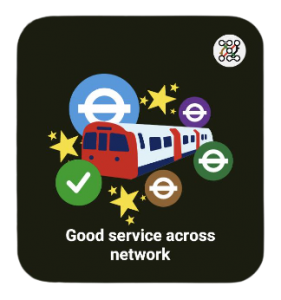
The free widget is available to all of our users and provides a simple summary of the conditions of the network. Tapping on the widget will take you into the Line status / Service status pages in app.
Please note that to minimise battery drain the widget simply provides a snapshot in time, which is typically no more than 15 minutes out of date, but normally will be spot on!
For important journeys please tap on the widget to take you directly to the Line / Service status page where you can view the very latest information, and set up any Notifications you require.
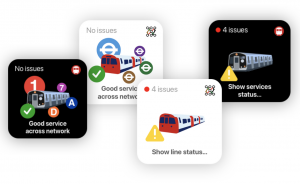
Premium subscribers will have access to the enhanced widget which comes in different sizes and offers more functionality. The enhanced widget provides more information at a glance, allowing you to check the service status of the network without necessarily having to go into the app.
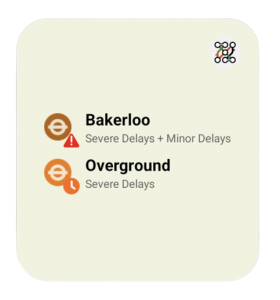
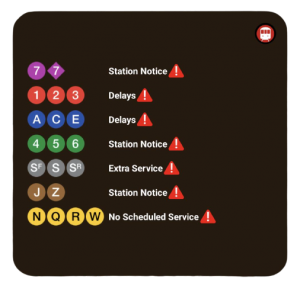
A couple examples of the enhanced widget above, showing issues with the network.
If you have any pinned services in Line/Service status these will appear first.
How to add widgets to your home screen.
1. On a Home screen, touch and hold an empty space.
2. Tap Widgets 
3. Find the app that has the widget you want.
4. To check the list of available widgets for the app, tap the app.
5. Touch and hold a widget. You’ll get images of your Home screens.
6. Slide the widget to where you want it. Lift your finger.
Tip: You can also get to the widgets like this: Touch and hold the app, then tap Widgets
How to resize a widget
1. Touch and hold the widget on your home screen.
2. Lift your finger. If the widget can be resized, you’ll find an outline with dots on the sides.
3. To resize the widget, drag the dots
4. When you’ve finished, tap outside the widget.